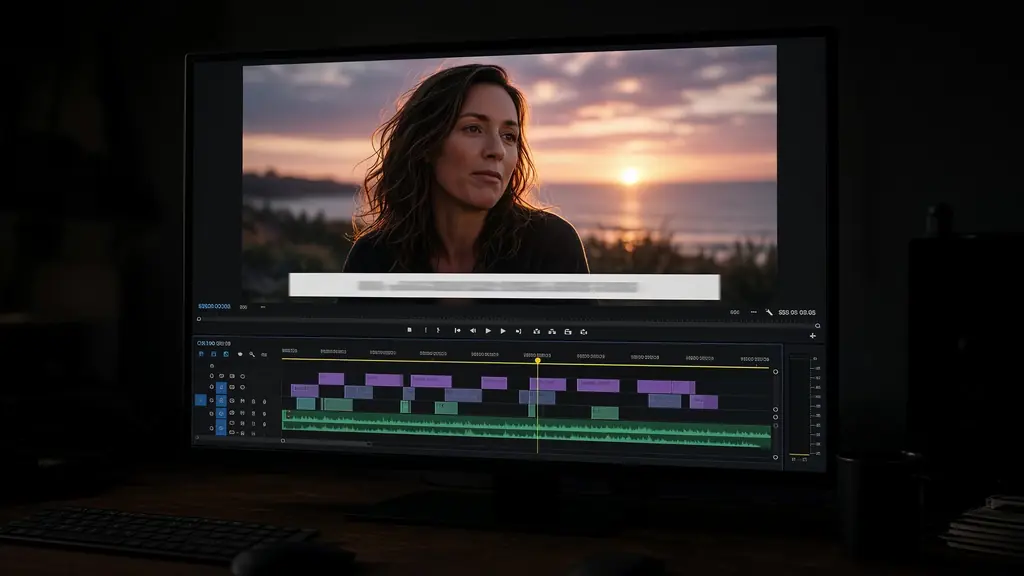
Every word, right on time.
01
Speech to text with frame-accurate timing
StarCut transcribes the speech in your clip and aligns each caption to the frames where it is spoken, so every line appears and leaves on the beat.
Upload any audio or video and StarCut transcribes it into frame-accurate captions. It detects pauses, breaths, and filler words so the dialogue stays tight, and keeps every caption editable on the timeline.
Upload a file to start. Captions stay editable after they are generated.
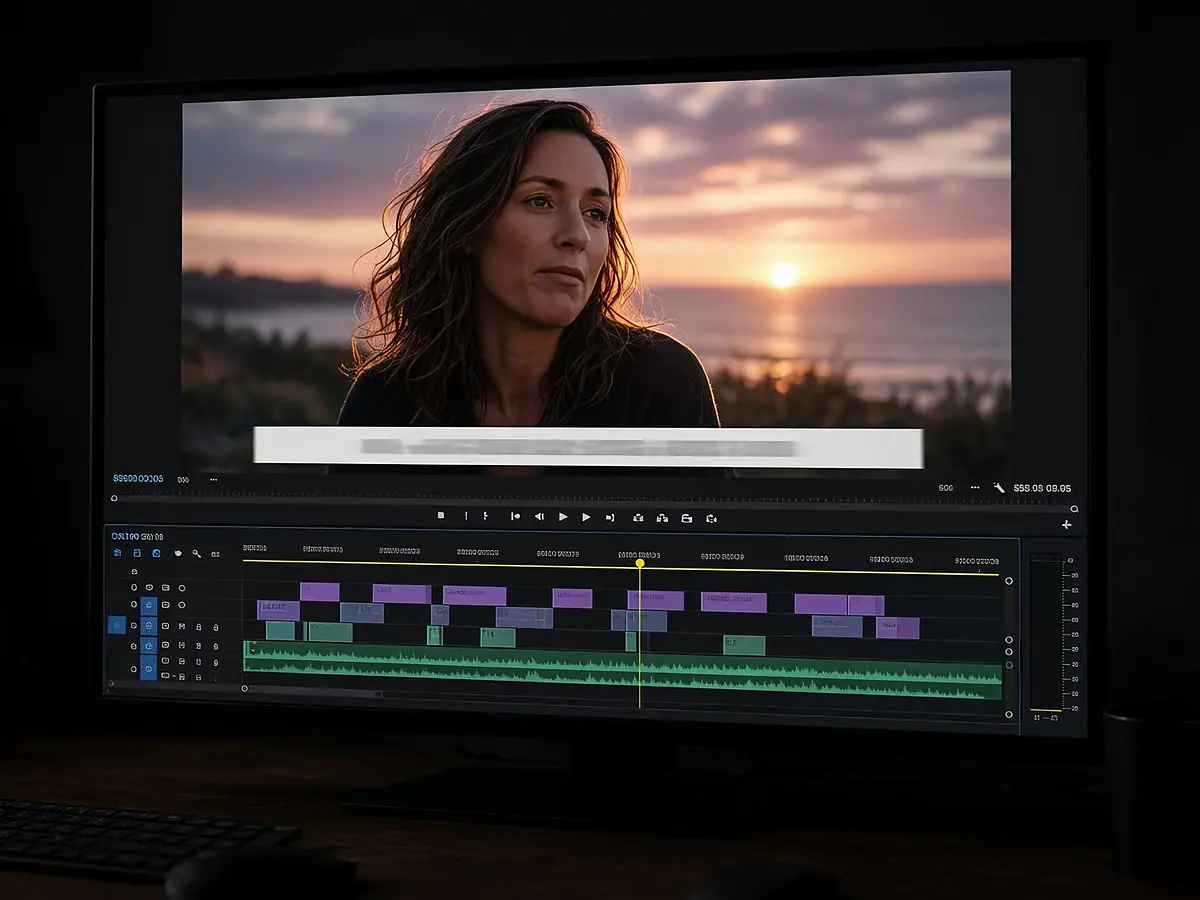
Every word, right on time.
StarCut transcribes the speech in your clip and aligns each caption to the frames where it is spoken, so every line appears and leaves on the beat.
The same pass detects pauses, breaths, and filler words. Remove them together and the dialogue tightens without trimming every gap by hand.
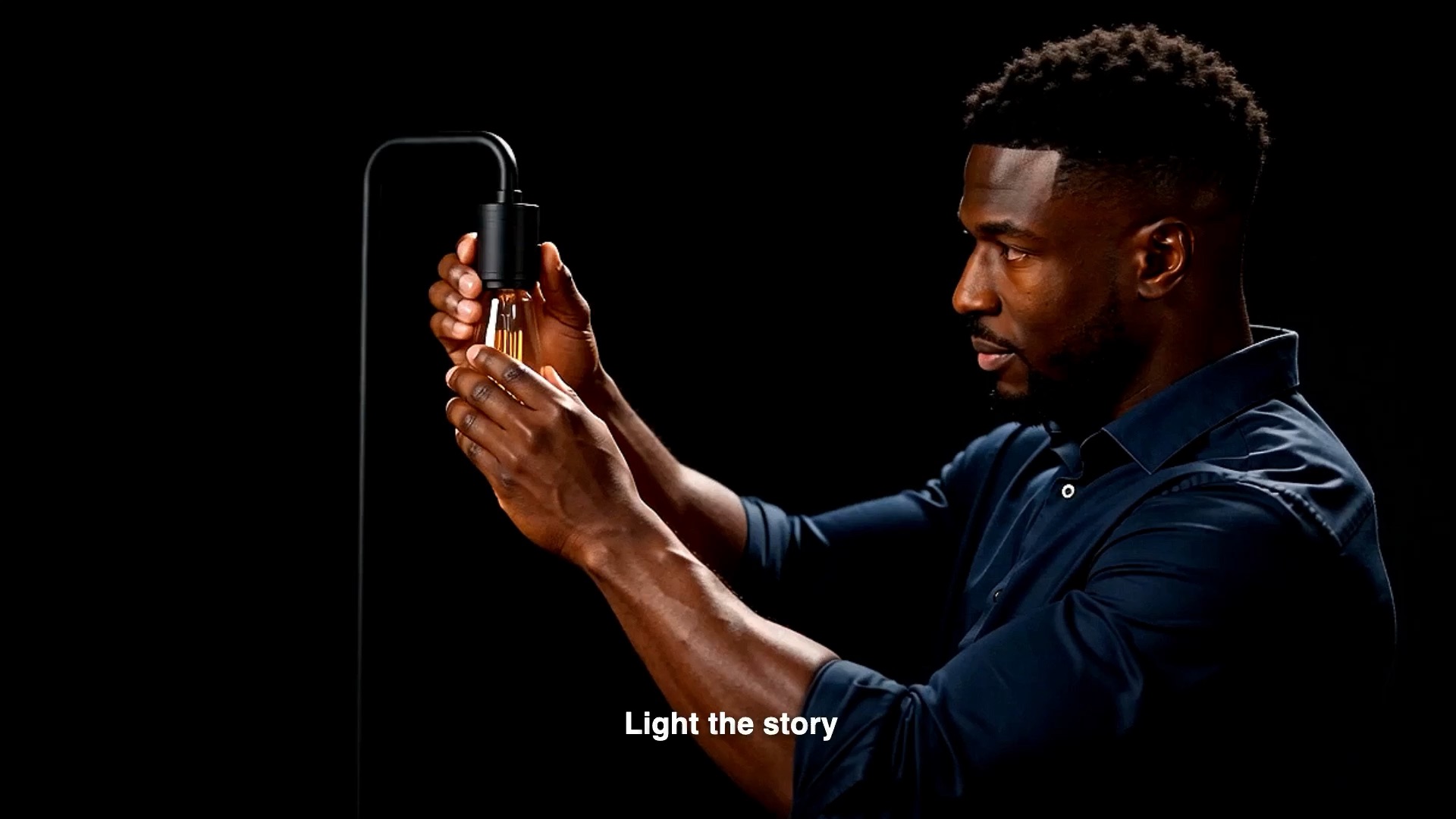
Captions sit on their own track. Fix a word, move a line, change the style, or add kinetic text effects for social cuts.
Anything with speech in it can get a timed, editable caption track.
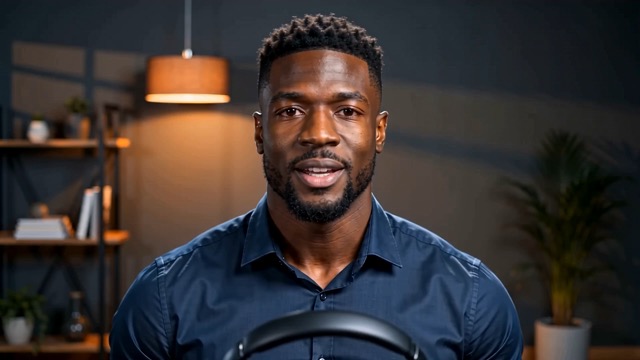
Subtitle long conversations and tighten them before publishing.

Bold, timed captions for clips that play with the sound off.

Readable captions for step-by-step presenter footage.
Drop in the file you want to caption.
StarCut transcribes the speech and times each line to the frames.
Fix words, remove pauses, and choose how the captions look.
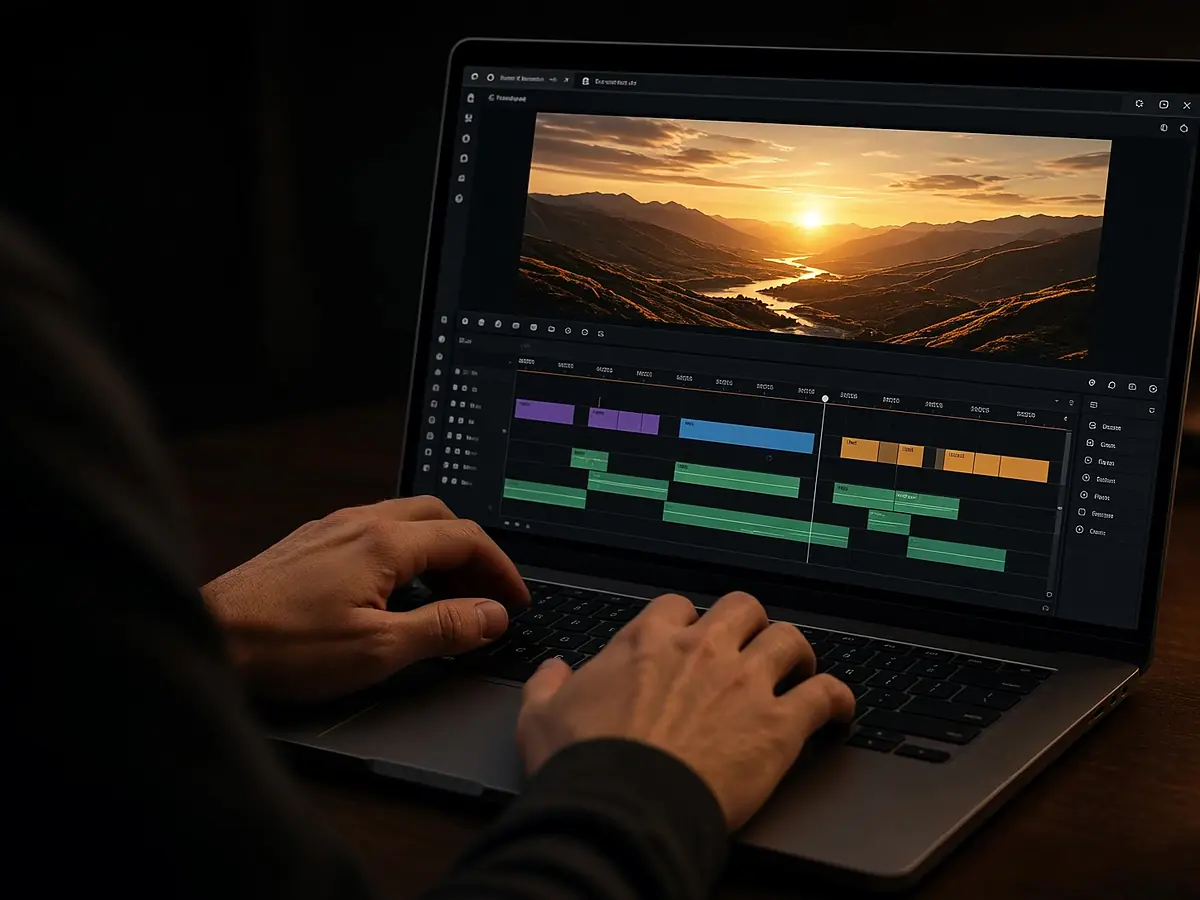
Edit in the browser with an agent beside the timeline
Open
Vertical clips for Shorts, Reels, and TikTok from one prompt
Open
Turn long episodes into captioned clips and vertical shorts
Open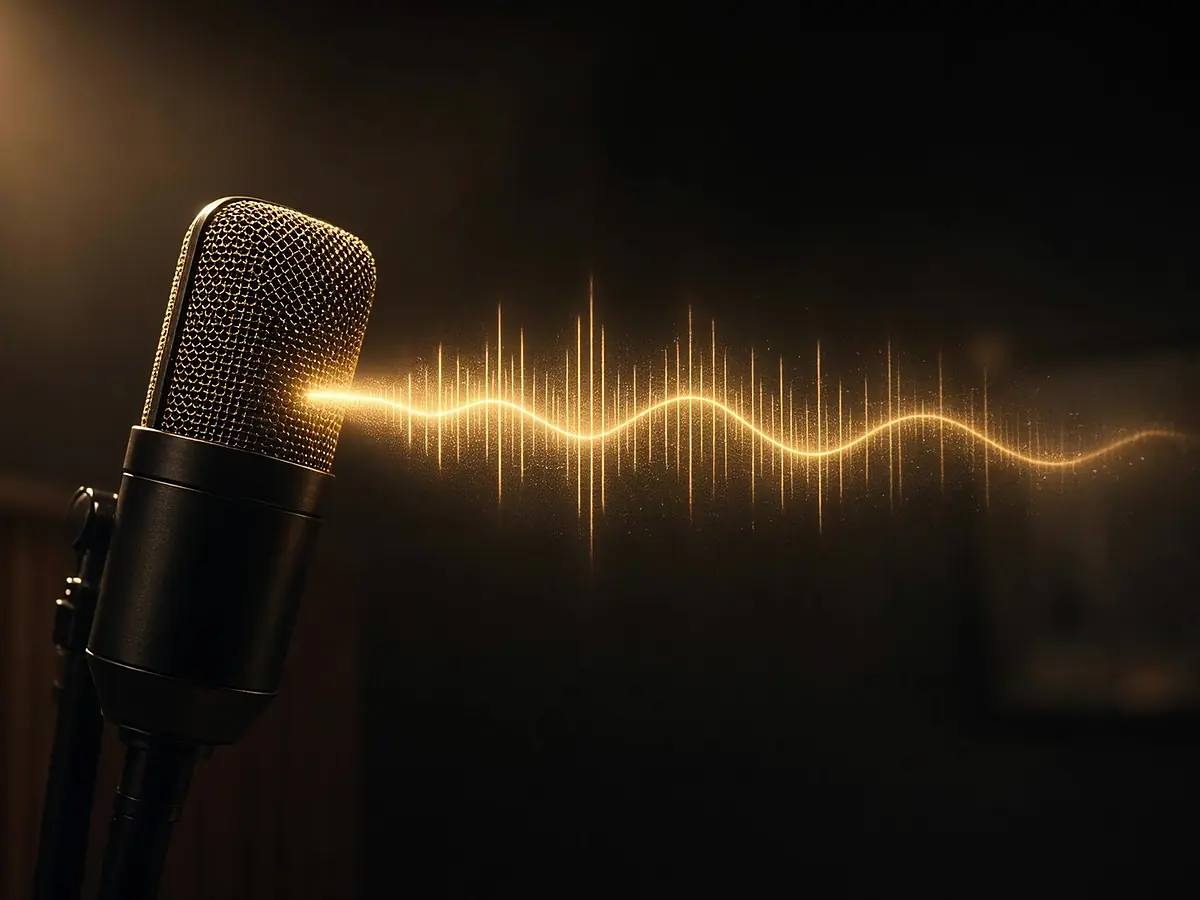
Natural narration from a script, timed to your edit
Open
Captions are aligned to the frames where each word is spoken. As with any transcription, names and jargon can need a quick fix, which you make directly on the timeline.
Yes. StarCut detects pauses, breaths, and filler words while it transcribes, so you can cut them in one step.
Yes. Captions are clips on their own track. You can change the text, timing, and style at any time.
Yes. Generate narration with text to speech, then caption it the same way as recorded audio.
Upload a clip and let StarCut time every line.