How to add subtitles to a video online (and keep them editable)
A practical guide to adding subtitles to a video in the browser with StarCut: auto captions, styling, timing fixes, and export.
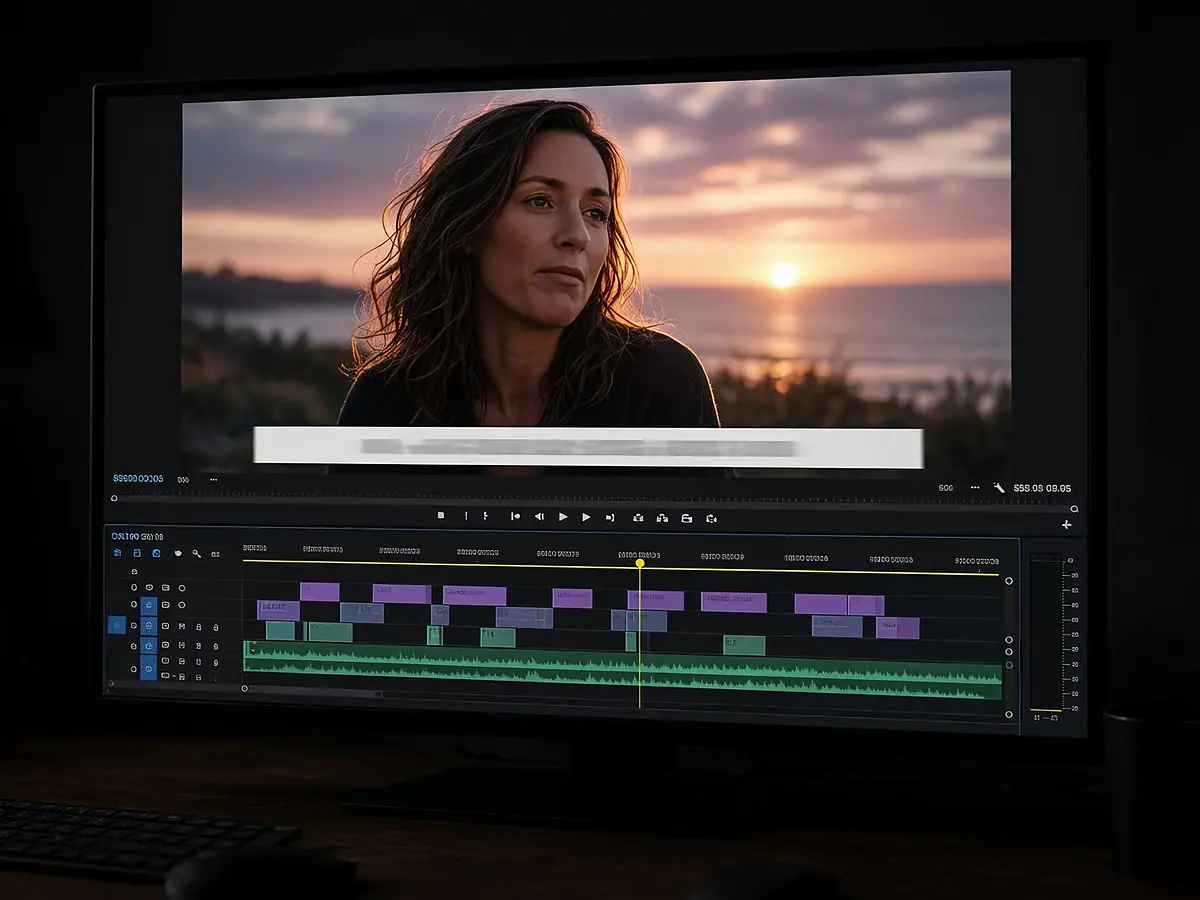
Why subtitles matter for reach
Many people watch short-form video with the sound off, and captions also help viewers who are deaf or hard of hearing, or who watch in a second language. Subtitles turn a clip people scroll past into one they can follow.
Add subtitles in four steps
You can do this from the auto subtitle generator page or inside a StarCut project.
- Upload your video or open an existing project.
- Ask the agent: “Add captions that follow the speech.”
- Review the caption track on the timeline; fix names and line breaks by hand.
- Restyle the captions, then export.
Styling that stays readable
Keep two lines at most, high contrast, and enough bottom margin that platform UI does not cover them. On vertical video, place captions slightly above center-bottom.
Fixing timing without starting over
Because captions are a normal timeline layer, a mistimed cue is a drag, not a re-render. Trim a pause in the video and move the caption with it.
Open the auto subtitle generator
Captions are part of the cut, not an afterthought.
Questions
Is it free to try?
Your first workspace gets 100 welcome credits, so you can try AI captioning before buying a pack.
Can I edit the text?
Yes. Every caption is editable on the timeline.